A five-minute tour
Mac Explorer is a fast, keyboard-first file manager for macOS. These eight stops cover the parts you’ll use every day. Everything else builds on them.
New here? Install first (one command), let the welcome flow index your Home folder, then walk through the stops below with the app open beside you.
Browse like you mean it
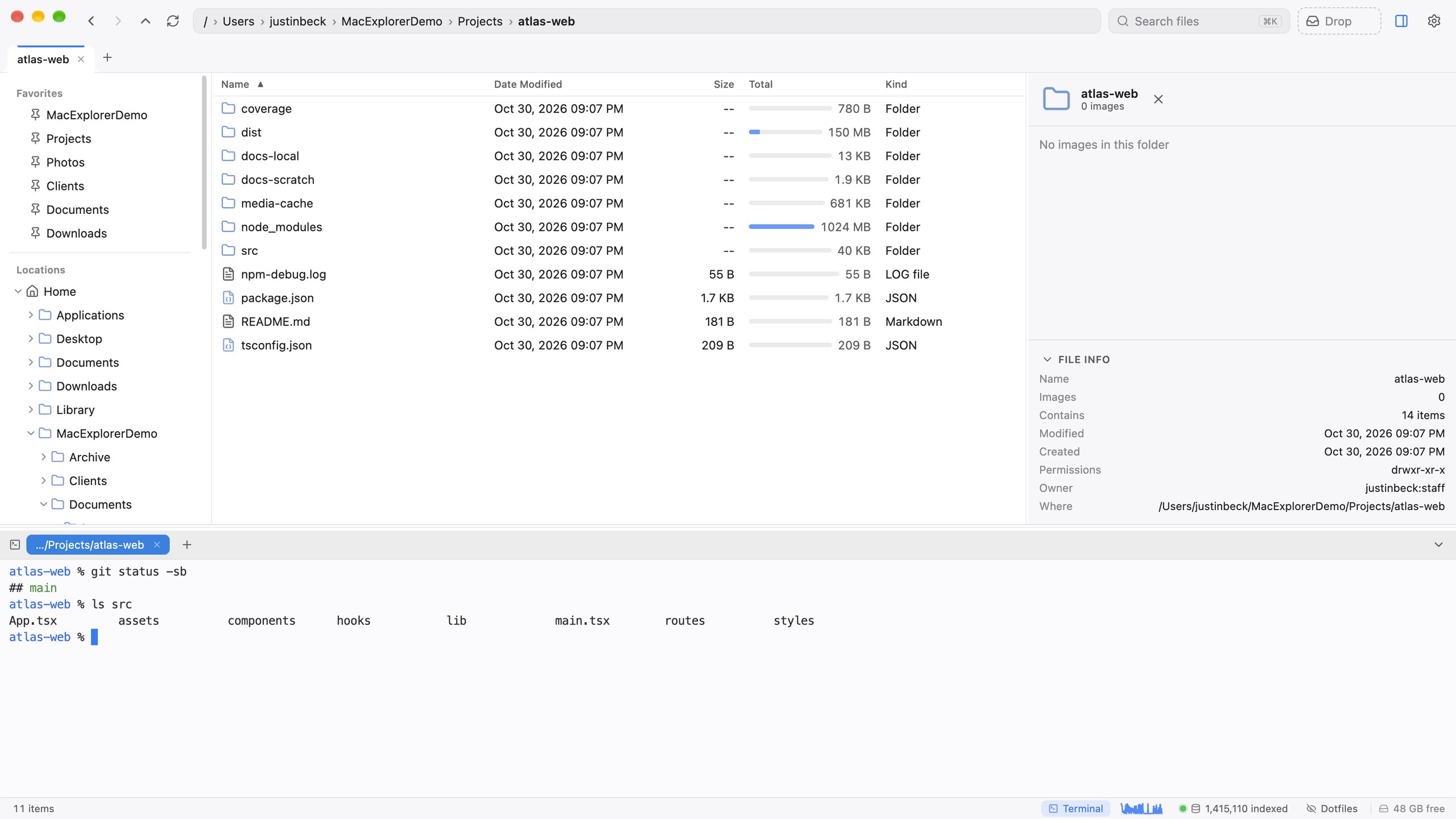
The window has three parts: a folder tree on the left, the file list in the middle, and an optional Quick View pane on the right. The tree expands in place, so you can see where you are, and the file list is a fast details view that stays smooth in folders with tens of thousands of items.
- Arrow keys move through the list. ↩ renames and ⌘↓ opens, as in Finder.
- Start typing a name and the selection jumps to it.
- ⌘[ and ⌘] go back and forward. ⌘↑ goes to the parent folder.
- Click the breadcrumb at the top to jump to any parent folder. Press ⌘L to type or paste a path. If the folders don’t exist yet, Mac Explorer offers to create them.
Tabs and windows
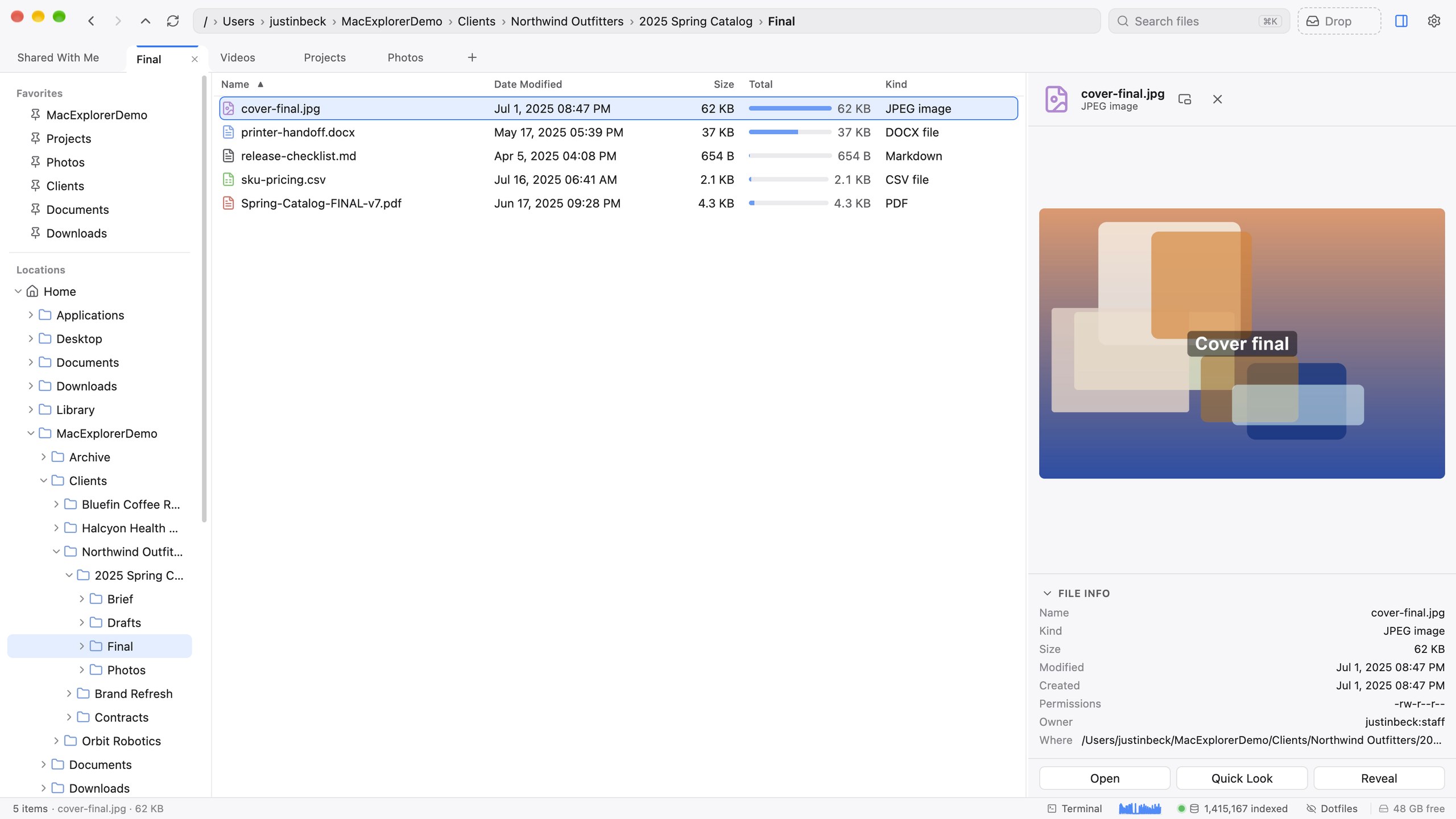
⌘T opens a tab, ⌘1 … ⌘9 jump between them (⌘9 is always the last), and ⌃Tab cycles. Drag a tab onto another window’s tab bar to move it. Quit and relaunch, and every window comes back with its tabs, including search tabs and each tab’s back/forward history.
Search with ⌘K
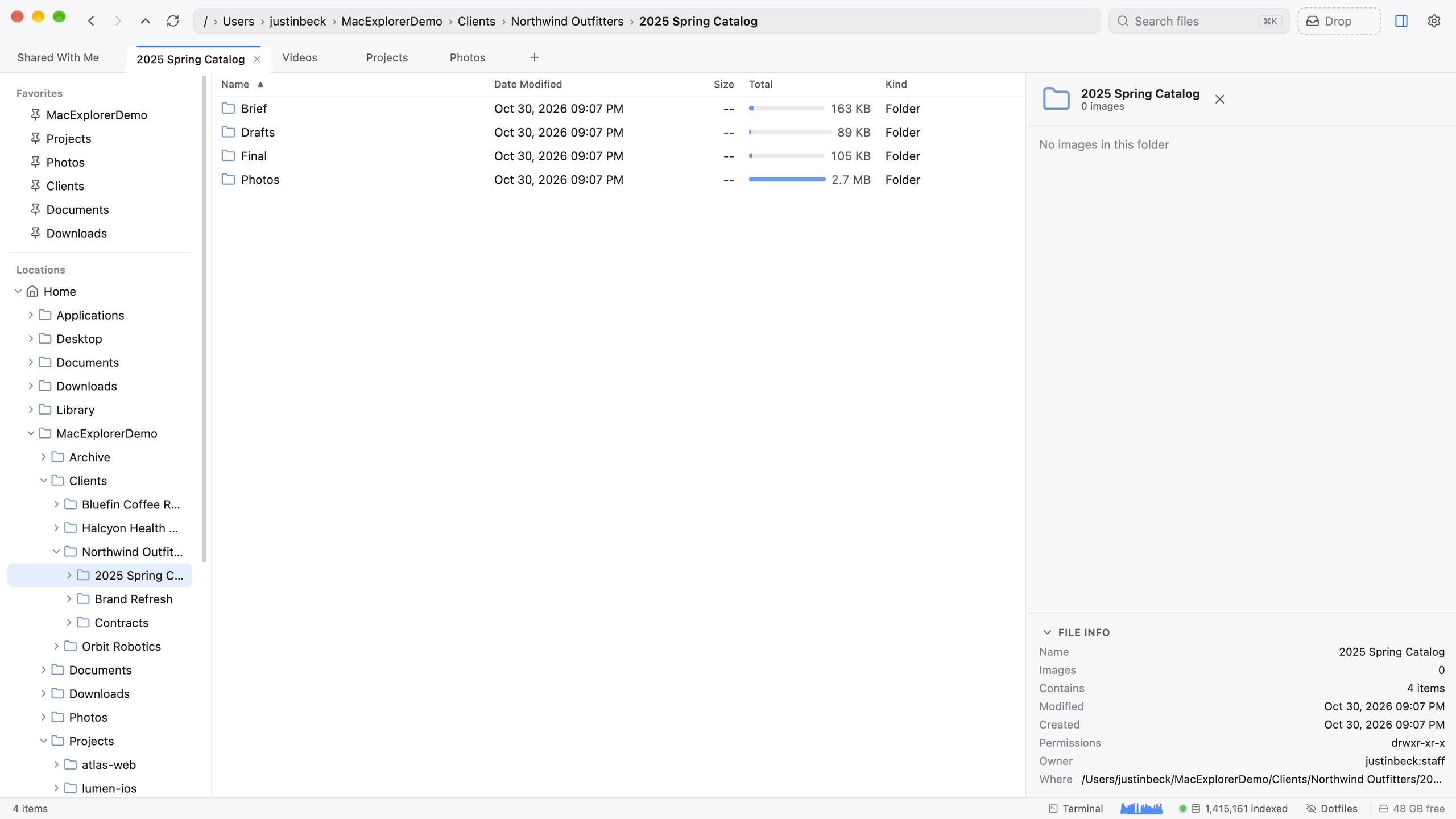
Press ⌘K and start typing. Results come from Mac Explorer’s own index and update with every keystroke. Press ↩ on a file to open its folder with the file selected. Press ⌘↩ to see every match as a full results tab, where Quick View previews each one as you arrow through.
Search covers the folders you’ve chosen to index (usually your Home folder). Use the This folder / Everywhere toggle to narrow it. More about search →
The Total column
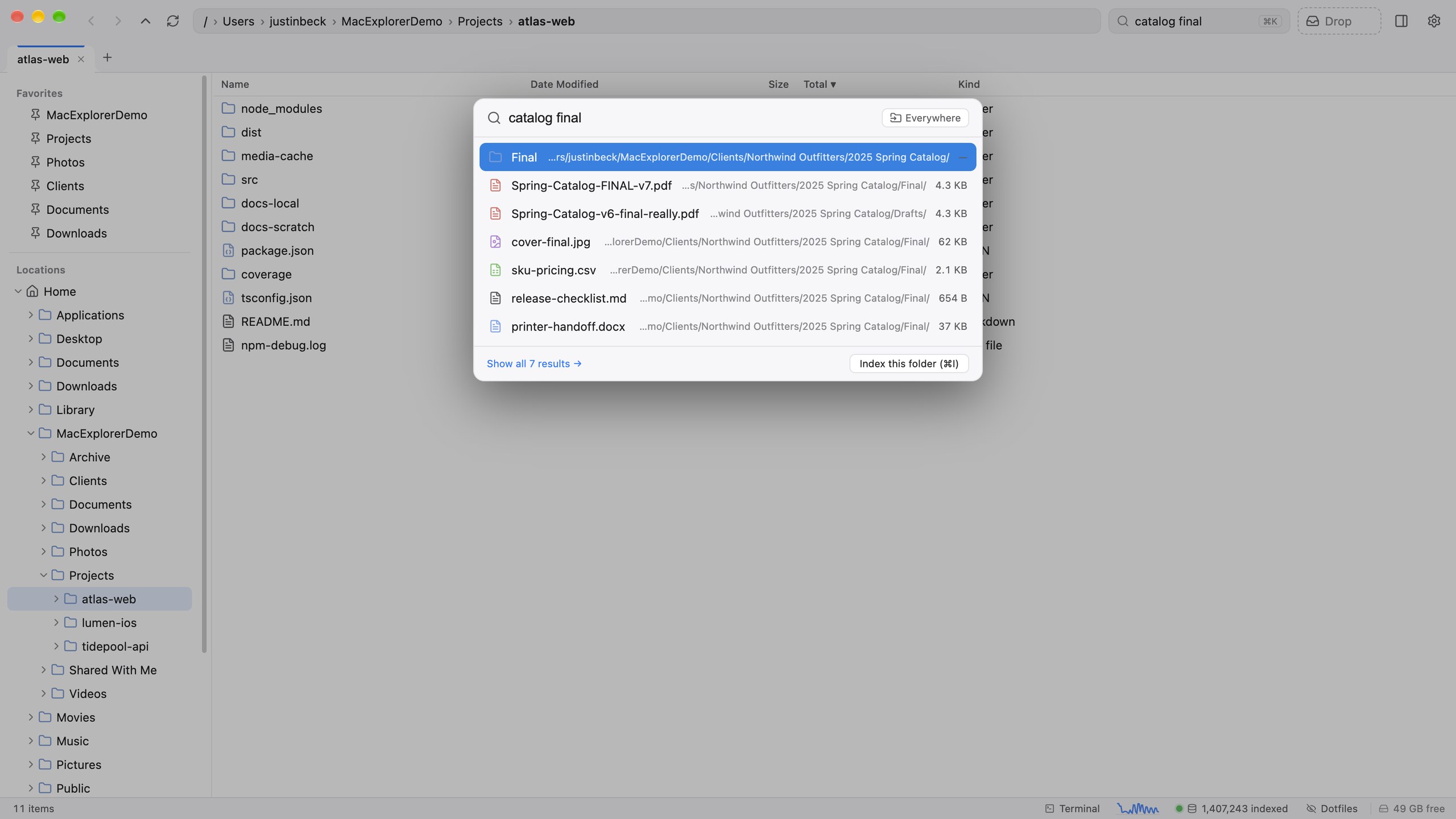
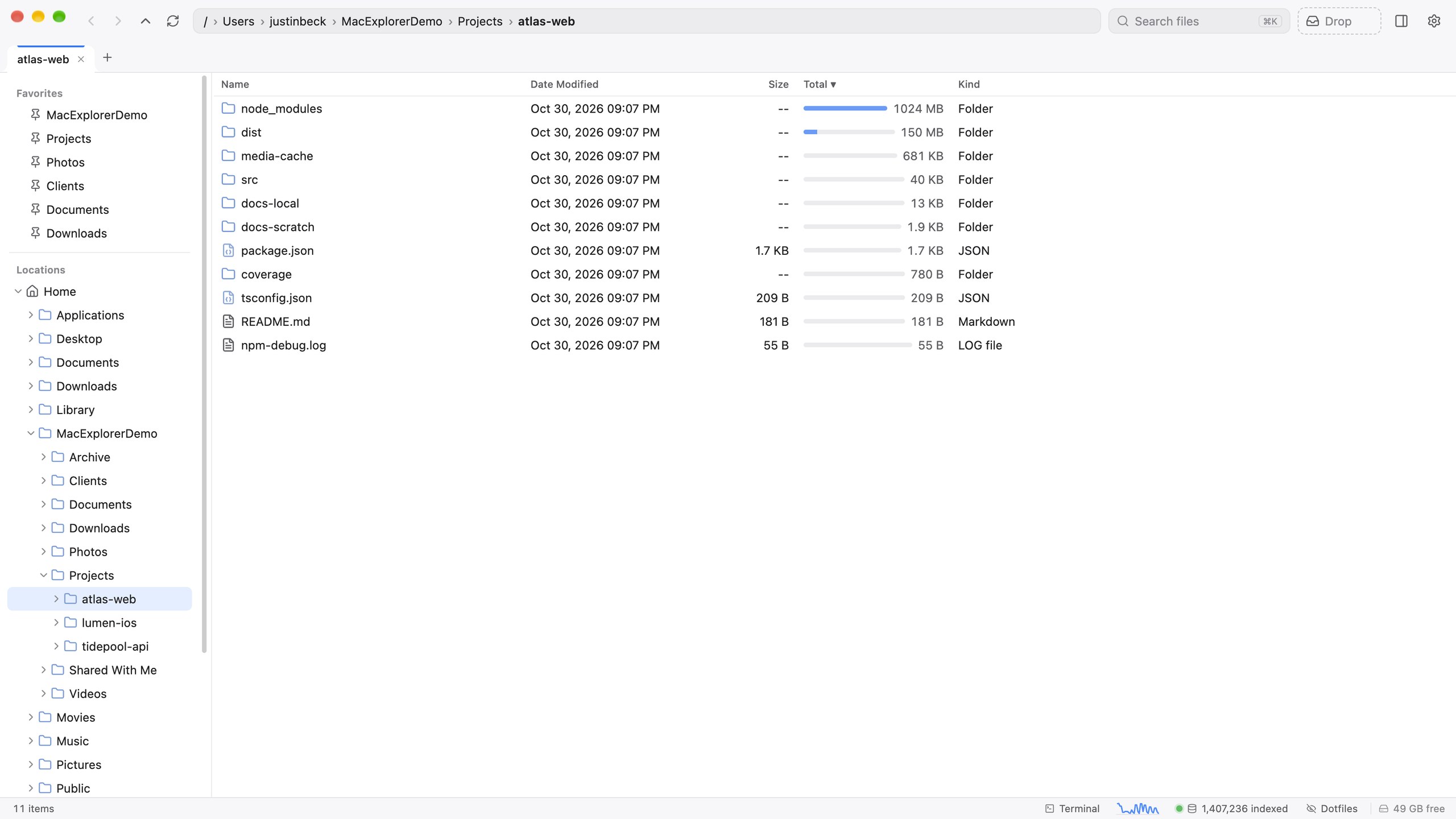
Next to Size there’s a Total column: the real recursive size of every folder, with a bar showing how it compares to its neighbours. Click the header to sort biggest-first and see what’s taking up the space. Sizes come from the index, so there’s nothing to wait for.
Quick View
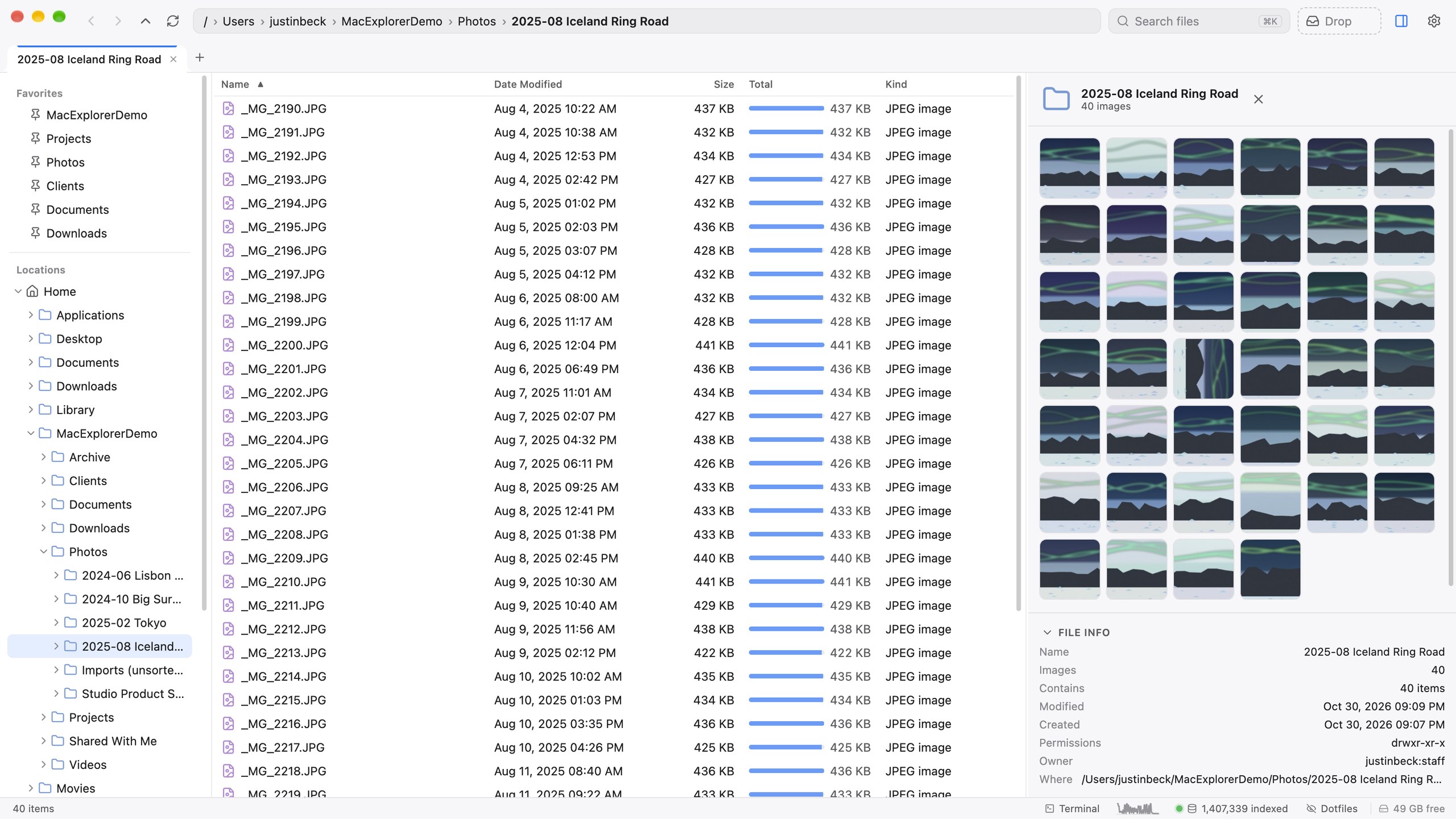
⌘⌥P opens the Quick View pane. It previews whatever is selected: photos (with camera, lens and GPS), video, PDF, Word, Excel, Markdown and more. Press esc to clear the selection and the pane turns into a gallery of every image in the folder. space still opens the system Quick Look.
Drag & drop, and the Drop shelf
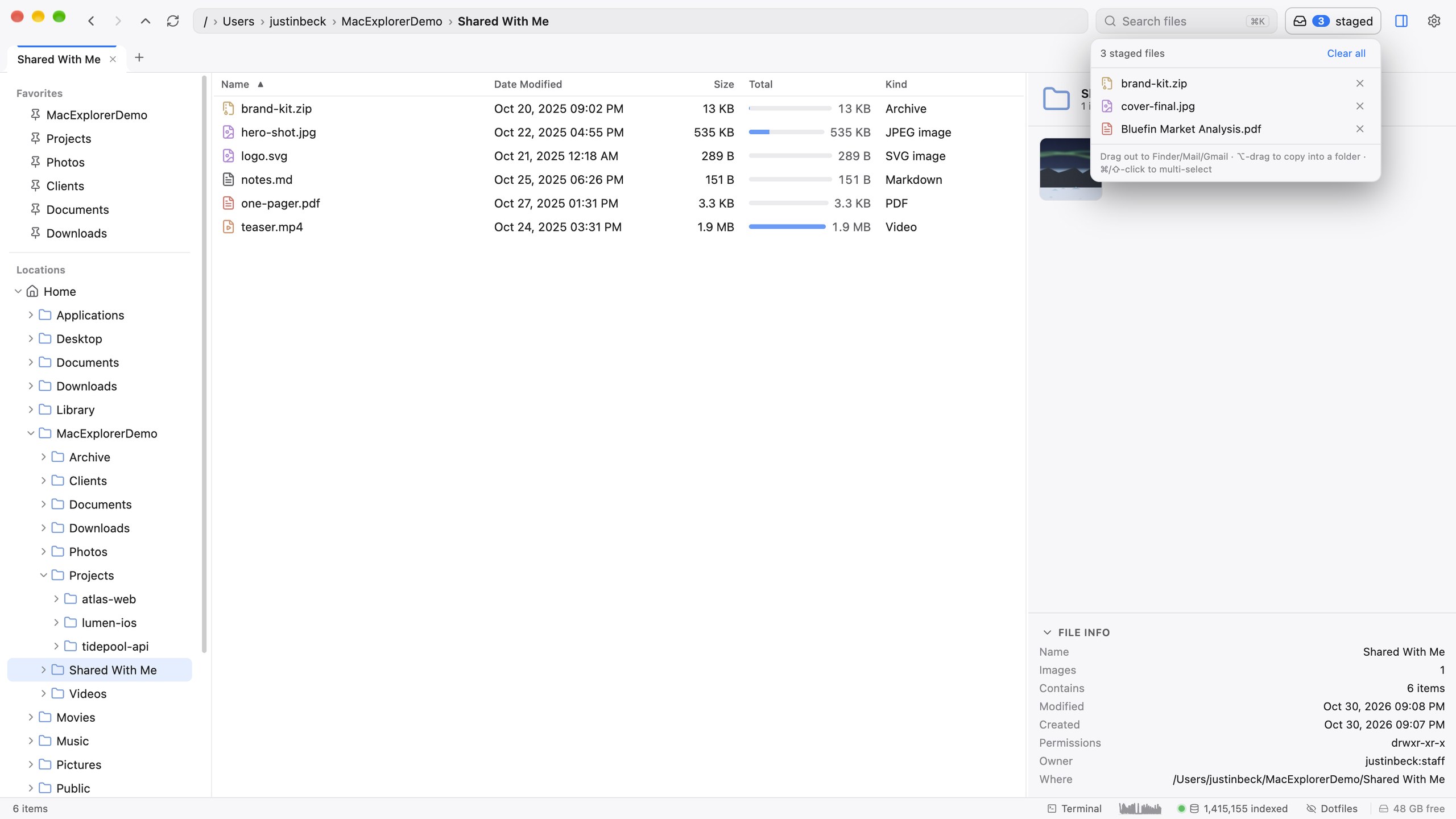
A plain drag takes the real files anywhere: Finder, Mail, a Gmail upload field, Slack. To collect files from several folders first, drop them on the Drop pill in the toolbar. The shelf holds references until you drag everything out together.
Disk Usage
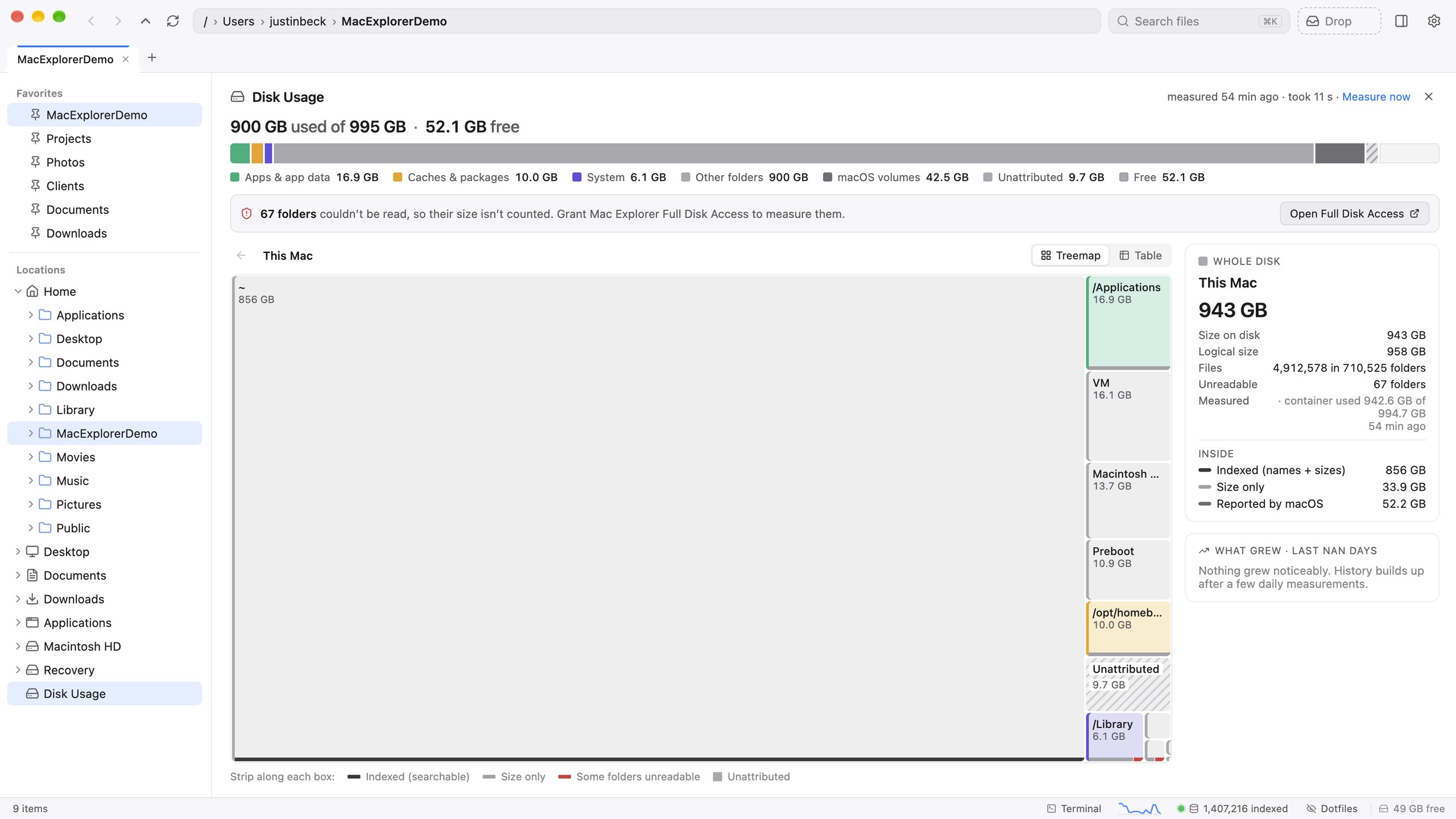
Click the “X free” chip in the status bar. Disk Usage maps your whole Mac, not just indexed folders, as a treemap you can drill into. It also shows the “Unattributed” space macOS usually hides as System Data. Sizes count each APFS clone once, so they show what deleting something would actually free.
The terminal drawer
Press ⌃` and a real terminal slides up, already in the folder you’re looking at. ⌃⇧` adds a tab. Hide the drawer and your shells keep running.