
File list & the Total column
A details view that stays fast in huge folders, with real recursive folder sizes you never have to wait for.
Columns
The file list has five columns: Name · Date Modified · Size · Total · Kind.
- Click a header to sort by it, and click again to reverse.
- Drag a column edge to resize it. Widths are remembered.
- Folders stay above files when sorting. To mix them, right-click the background and turn off Keep Folders First When Sorting (also in Settings ▸ Appearance).
The list is virtualized, so a folder with tens of thousands of items scrolls as smoothly as one with ten.
The Total column
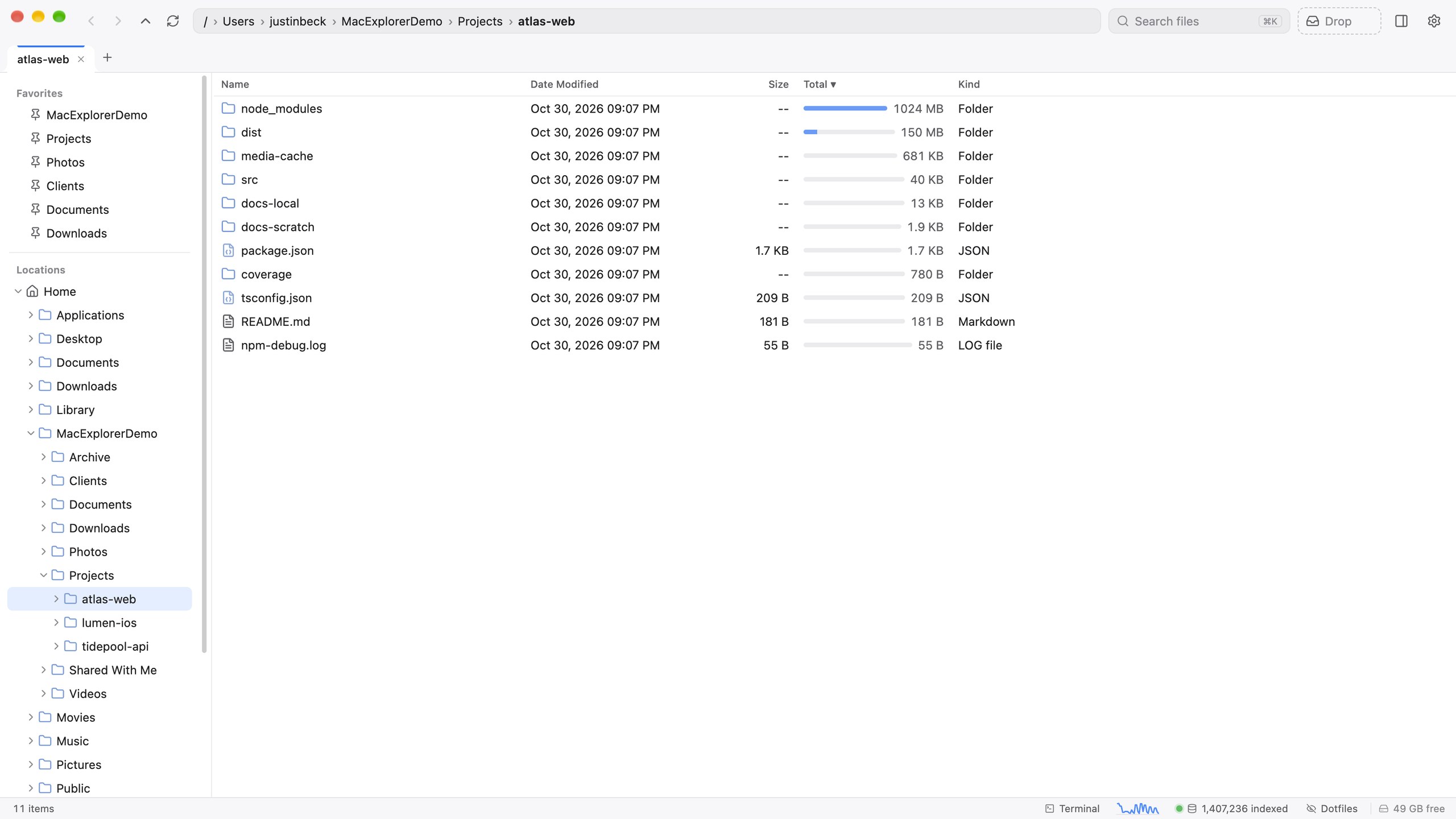
Total is the real, recursive size of each folder, with an inline bar scaled against the largest item in the current folder. Files show their own size. Click Total to sort biggest-first, and the folders taking up the most space rise to the top.
Totals come from the search index, so they’re instant, with no “Calculate all sizes” spinner, and they update live as the index notices changes.
Selecting
| Keys | Action |
|---|---|
| ↑ ↓ | Move the selection |
| ⇧↑ ⇧↓ | Extend the selection |
| PageUp PageDown | Move a screenful |
| Home End | First / last item (add ⇧ to extend) |
| Click, ⇧-click, ⌘-click | Select, select a range, toggle one item |
| ⌘A | Select all |
| Type a name | Jump to the first matching item |
Finder-style keys
Your Finder habits still work:
- ↩ renames the selected item. The name is selected, not the extension. F2 works too.
- ⌘↓, ⌘O, ⇧↩ or a double-click opens it.
- space opens Quick Look.
- ⌘⌫ moves to the Trash.
The Esc key
esc closes whatever is on top, one layer at a time: the path editor, the image viewer, search, the command palette, Settings, Get Info, Disk Usage, a results page. When nothing is left to close, it clears the selection. With nothing selected, Quick View shows the folder’s image gallery.
Empty and unreadable folders
An empty folder says This folder is empty. A folder macOS won’t let Mac Explorer read says Can’t read this folder. Granting Full Disk Access in System Settings ▸ Privacy & Security usually fixes the second one.