
Browsing, tabs & windows
The tree sidebar, the breadcrumb and address bar, Go to Path, tabs that survive a relaunch, favorites, and the status bar.
The tree sidebar
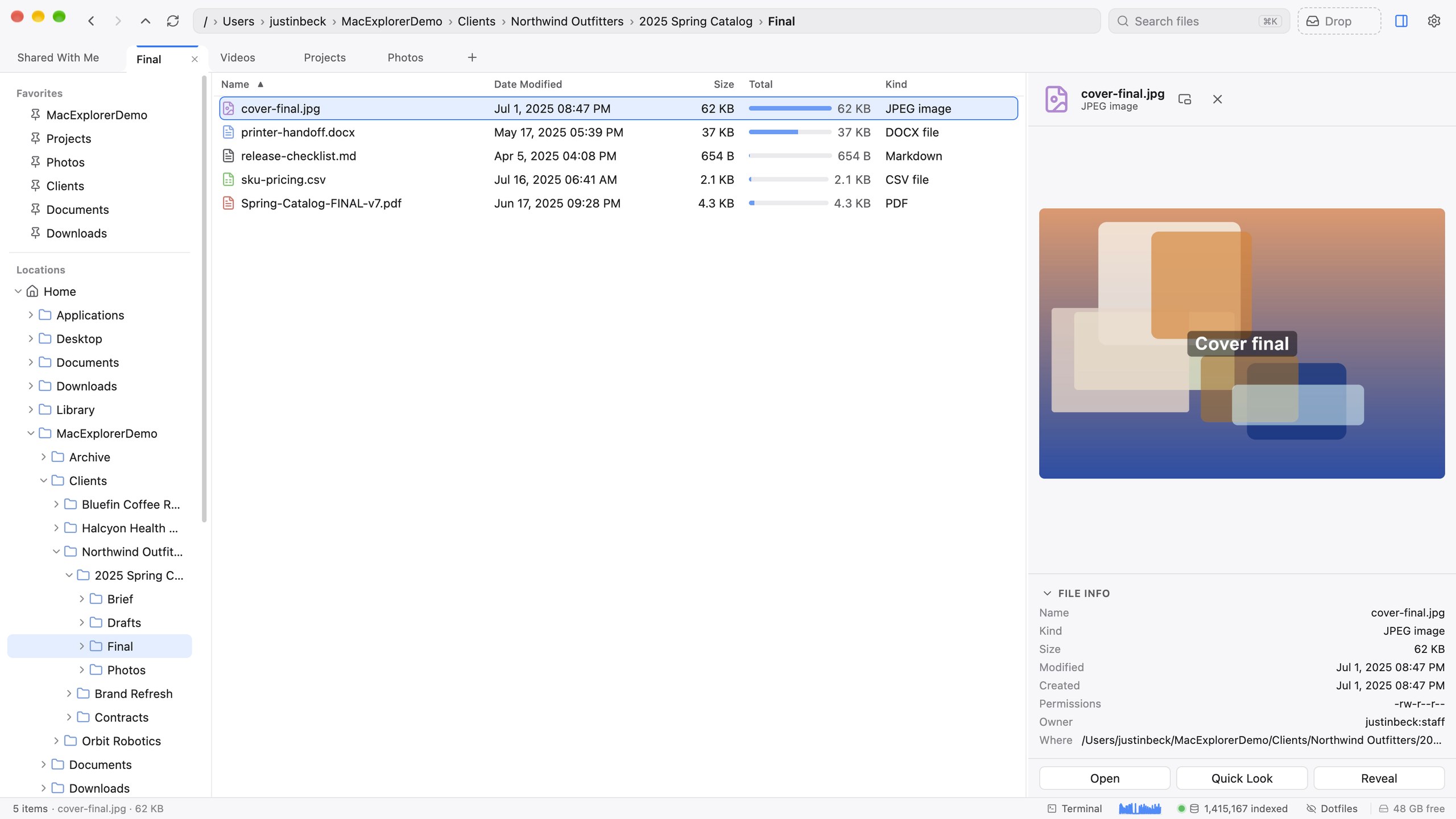
The left side of every window is a real folder tree. Under Locations you’ll find Home, Desktop, Documents, Downloads, Applications, any mounted volumes in /Volumes, and any cloud or network remotes you’ve added. Folders expand in place, and the tree follows you as you navigate. Drag the divider to resize it.
The tree works from the keyboard:
| Keys | Action |
|---|---|
| ↑ ↓ | Move the tree cursor |
| → / ← | Expand / collapse (or go to the parent) |
| ↩ | Open the folder at the cursor |
| Tab | Jump to the file list and select the first item |
Favorites
Right-click any folder or breadcrumb segment and choose Pin to Sidebar. Pinned favorites can be dragged to reorder, and you can Rename Shortcut to give one a different label without renaming the folder itself. Drop files on a favorite to move them there (hold ⌘ to copy), or hover mid-drag to spring-load it open.
The sidebar also has a Disk Usage row under Locations. It opens Disk Usage.
The breadcrumb and address bar
The path bar at the top shows where you are as clickable segments.
- Click a segment to go there.
- ⌘-click a segment to copy that folder’s path.
- Right-click a segment for Open in New Tab or Window, Reveal in Finder, Get Info, Pin to Sidebar, Open With, Copy Path or Name, and New Folder Here.
- Drag a segment out like any folder.
Press ⌘L (or click the empty space in the bar) to edit the path. Type or paste a path and press ↩; esc cancels. ~ expands to your Home folder. If the path doesn’t exist, Mac Explorer offers to create all the missing folders in one step.
Go to Path
Paths arrive from everywhere: Terminal, Slack, a bug report, a build log. Mac Explorer accepts them as you found them:
- terminal-escaped paths (
~/My\ Project/notes.md) - quoted paths (
"/Users/me/My Project") ~pathsfile://URLsmacexplorer://links
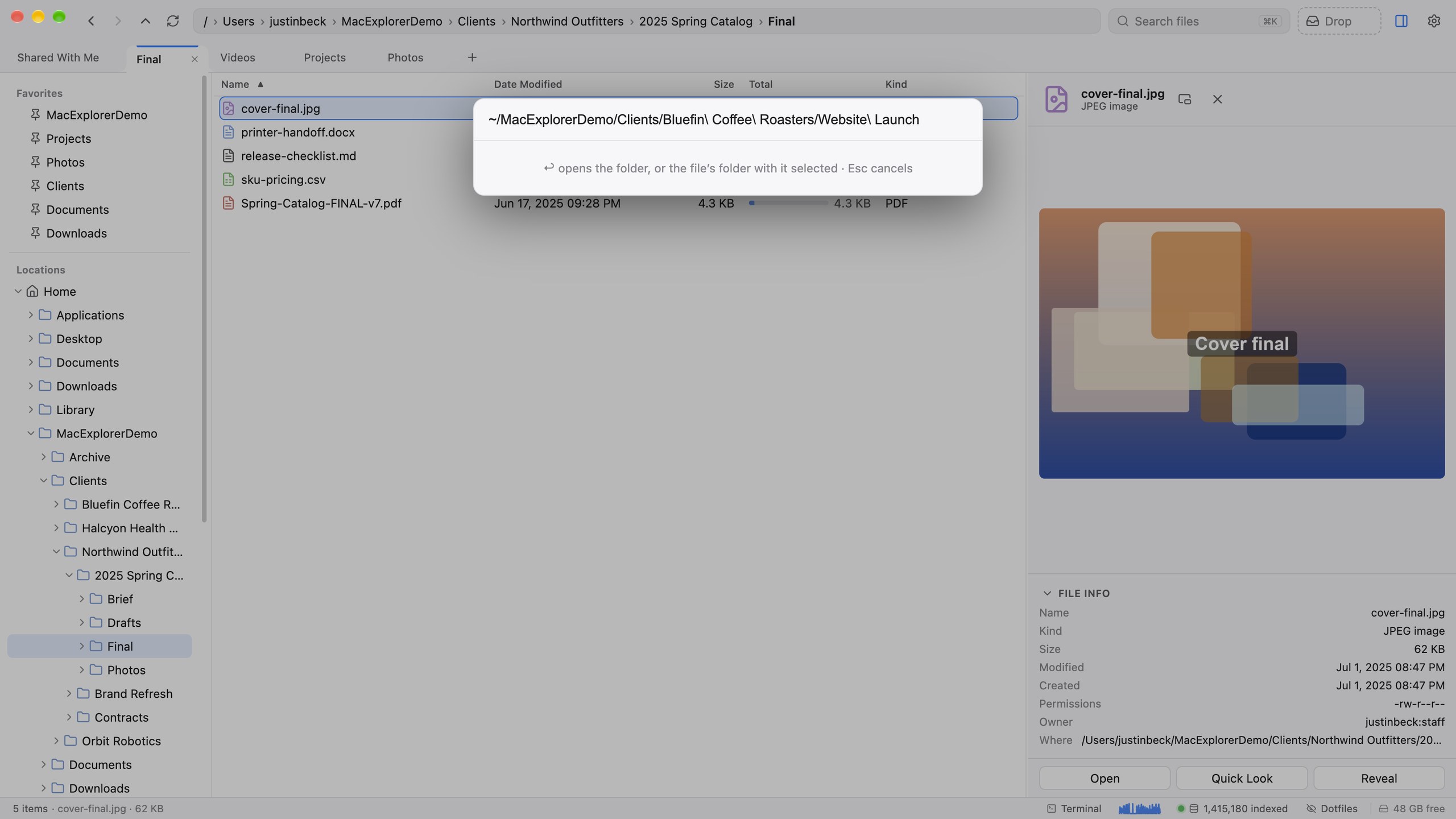
There are three ways in:
| Keys | What happens |
|---|---|
| ⇧⌘T | Opens the Go to Path box, already filled in from the clipboard. Also under File ▸ Go to Path…. |
| ⌘G | Goes straight to the path on the clipboard, with no box. |
| ⇧⌘O | From any app: a Mac Explorer window with the search box open. Paste a path and press ↩ to go there. |
| ⌃⌥⌘space | From any app: pops the menubar panel; paste and press ↩. See Finder & macOS integration. |
If the path points to a file, its folder opens with the file selected.
Tabs
| Keys | Action |
|---|---|
| ⌘T | New tab |
| ⌘W | Close tab (closes the window when it’s the last) |
| ⌃Tab / ⌃⇧Tab | Next / previous tab |
| ⌘1 … ⌘8 | Jump to tab 1–8 |
| ⌘9 | Jump to the last tab |
| ⌘↩ | Open the selected folder in a new tab |
| Middle-click a folder | Open it in a background tab |
| Middle-click a tab | Close it |
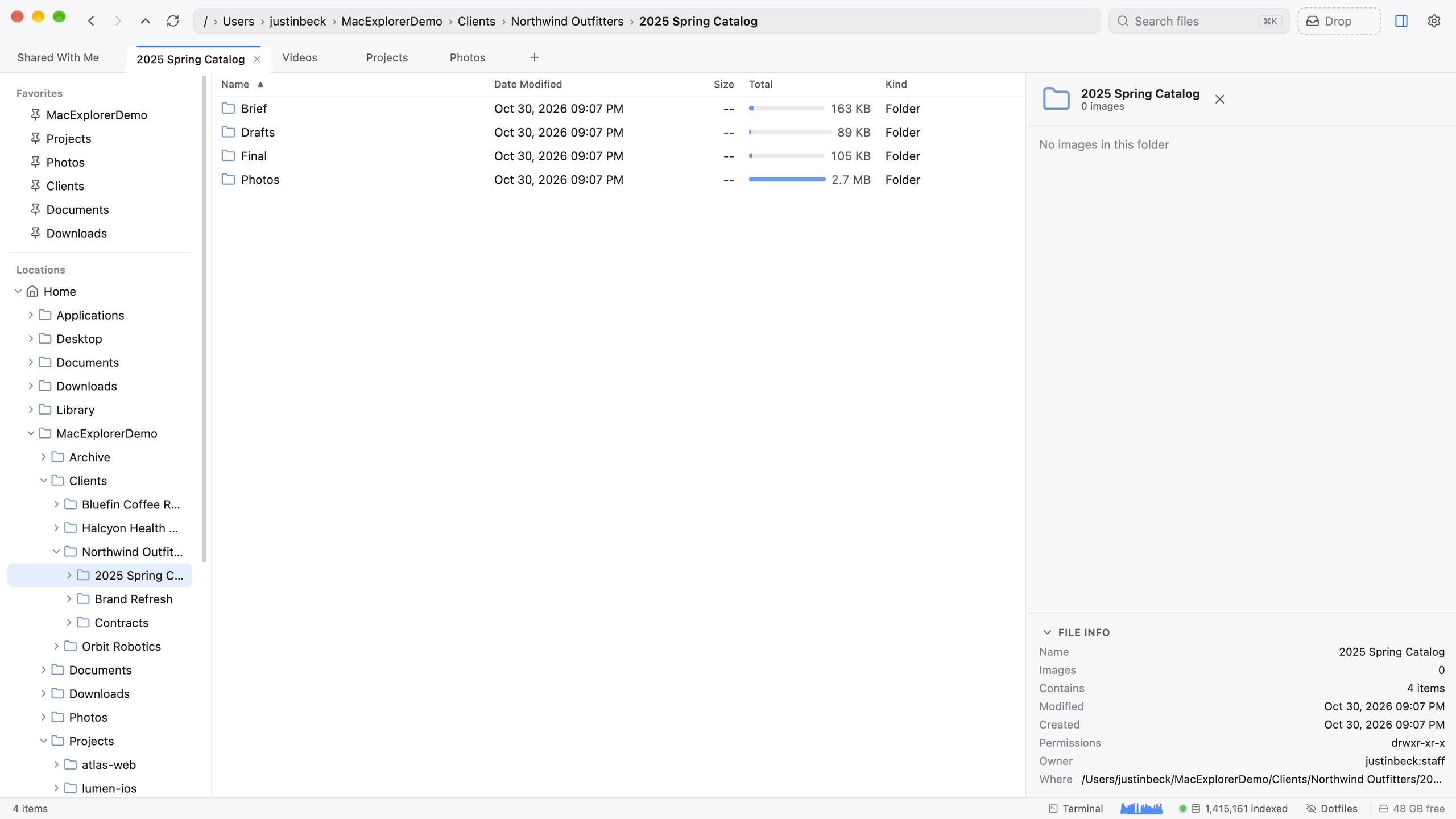
Tabs can hold folders or search results (see the results page). Drag tabs to reorder them, or drop one onto another window’s tab bar to move it there.
Windows and session restore
Open as many windows as you like with ⌘N. ⌘⇧O focuses an existing window or opens one, and ⌘⇧W closes the current window.
When you quit and relaunch, every window comes back at its position and size, with all its tabs, including search tabs and each tab’s back/forward history. Tabs whose folder no longer exists are dropped, and windows that would open off-screen are repositioned. Closing the last window keeps the session.
Back, forward, up
Each tab has its own history: ⌘[ back, ⌘] forward, ⌘↑ up to the parent, ⌘⇧H Home. The toolbar arrows do the same.
The command palette
Press ⌘⇧P to search every command by name, with its shortcut shown beside it. Some commands only live here, such as Index Current Folder for Search, Show Disk Usage and Open Terminal Here. ⌘⇧P works even while you’re typing in a text field.
The status bar
The bottom of the window shows more than an item count:
- Selection: the selected item’s name and size, or “N selected · total”.
- File operations chip: progress, “Action needed” when a copy is waiting on a conflict, or “N done”. Click it to open the Jobs panel.
- Terminal chip: opens the terminal drawer.
- Load sparkline: what the indexer is doing. See the load monitor.
- Search index chip: index status. Click it for Search Index settings.
- Dotfiles: show or hide hidden files (also ⌘⇧.).
- “X free”: free space on the disk. Click it for Disk Usage.
Appearance
⌘⌥T switches between light and dark, independently of the system setting. Settings ▸ Appearance also has Keep folders ahead of files and Show hidden files.
Open With
Right-click a file ▸ Open With lists a curated set of installed apps (TextEdit, Preview, VS Code, Cursor, Xcode, iTerm, Office, IINA, Blender and others) plus Other… for anything else.