
Finder & macOS integration
Summon Mac Explorer from any app, open folders from Finder’s right-click menu, make it the target of Reveal in Finder, and script it with deep links.
Global hotkeys
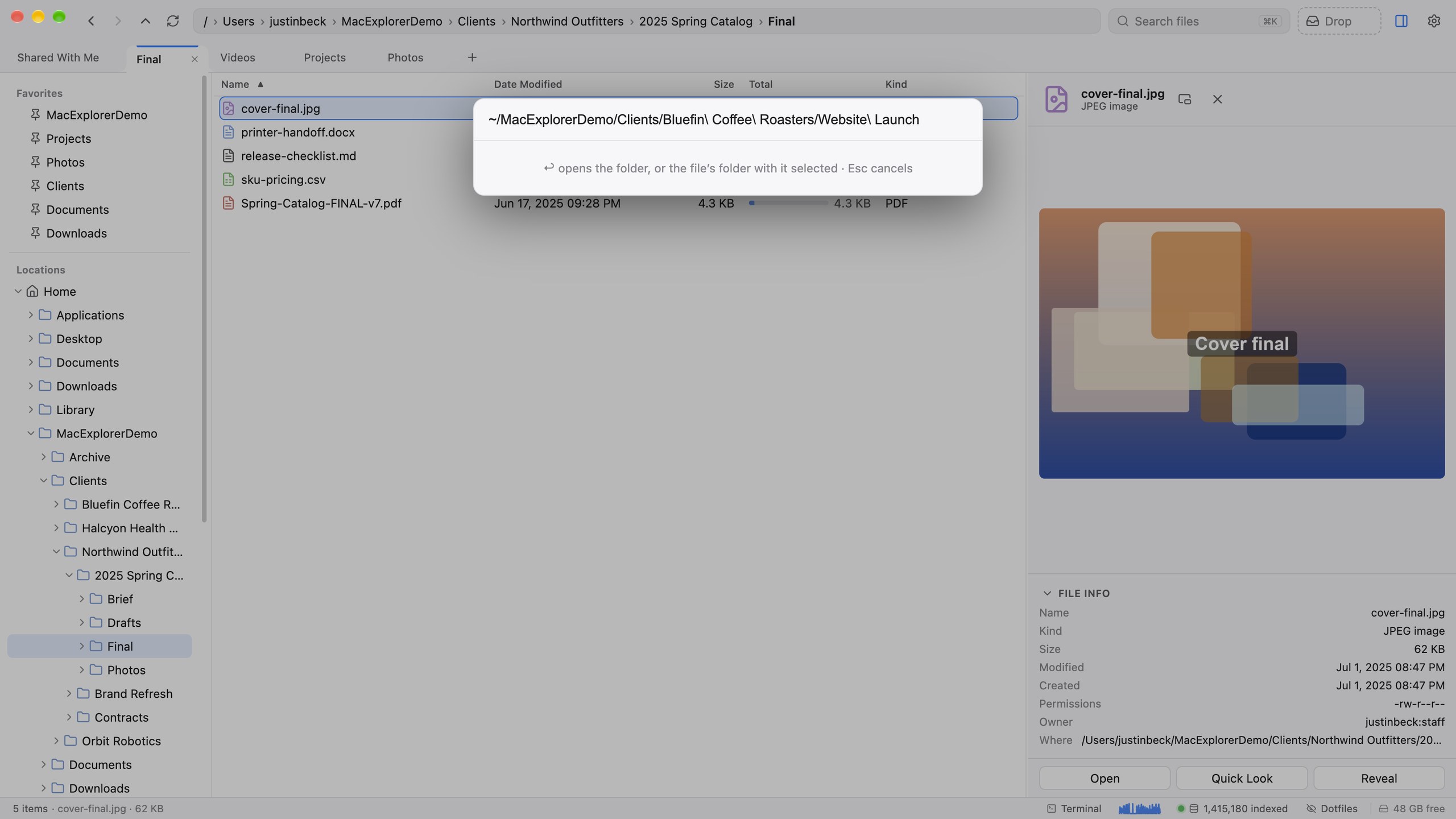
Press ⇧⌘O from any app to bring Mac Explorer to the front with the search box open, the same box as ⌘K.
- Type to search, ↑↓ to pick, ↩ to open.
- Paste a path (any form: escaped, quoted,
~,file://,macexplorer://) and press ↩ to go there. A file opens in its folder with the preview pane showing it. - Paste a web address and ↩ opens it in your browser.
While Mac Explorer is running, ⇧⌘O belongs to it system-wide, so apps that use the same shortcut won't see it.
Global hotkey and menubar panel
Press ⌃⌥⌘space from any app to pop the Mac Explorer menubar panel with its search field focused.
- Type to search the index. The top 12 matches appear as you type. Press ↩ to show the top hit in Mac Explorer, or ⌘click a hit to show it rather than open it.
- Paste a path in any form (escaped, quoted,
~,file://,macexplorer://) and press ↩ to go there. - esc clears the field.
The panel lives behind the ⬇ icon in the menu bar and has three tabs:
| Tab | What’s there |
|---|---|
| Files | Recent downloads with thumbnails and a large preview on hover, plus a drop area that copies files into ~/Downloads and onto the Drop shelf |
| Croc | Active croc transfers |
| Links | Your shared links |
Right-click the menu bar icon for Open Mac Explorer, New Window, Go to Path…, Show Downloads and Quit.
Finder Quick Actions
The installer adds two system integrations (or run macx quick-actions install):
- Open in Mac Explorer: right-click a folder in Finder ▸ Quick Actions.
- Go to Path in Mac Explorer: select a path in any app, then right-click ▸ Services.
Check them with macx quick-actions status.
Make it your file viewer
Every app has a Reveal in Finder command: VS Code, Xcode, your browser’s downloads list, Terminal. Opt in, and all of them open Mac Explorer instead, with the file selected:
macx defaults set --file-viewer
(or install with --file-viewer). A small helper app inside Mac Explorer receives the request and hands it over.
To undo it:
macx defaults restore
Default app for documents
Mac Explorer also includes a fast standalone viewer for Markdown, plain text (including CSV, JSON, YAML and logs), video and audio. It registers as an alternate handler, so nothing changes until you choose it in Open With or make it the default:
macx defaults show                  # see what opens what (read-only)
macx defaults set --markdown        # or --text, --video, --audio
macx defaults restore               # put the previous apps back
Your previous handlers are backed up before anything changes.
Deep links
macexplorer:// links let scripts, Shortcuts, Raycast and anything else that can open a URL control Mac Explorer. Links that arrive while the app is launching are queued until it’s ready.
| Link | Action |
|---|---|
macexplorer://open?path=… | Open a folder |
macexplorer://goto?path=… | Go to a path in any pasted form |
macexplorer://view?path=… | Open a file in the standalone viewer |
macexplorer://new-window?path=… | Open a new window at a path |
macexplorer://search?q=…&scope=… | Open ⌘K with a query filled in |
macexplorer://stage?path=… | Add a file to the Drop shelf (repeat path for several) |
macexplorer://panel?search=1 | Open the menu-bar panel with its search box focused (tab=croc or tab=links picks a tab) |
macexplorer://reveal?path=… | Reveal the path in Finder |
From Terminal, the CLI does the same: macx open ~/Downloads, macx go "~/My\ Project", macx view notes.md.
Login item
On a fresh install, the installer adds a login item so Mac Explorer starts at login and relaunches if it crashes. That keeps search, the hotkey and the CLI available. Manage it with:
macx service status # also: install, start, stop, restart, uninstall