
Quick View & previews
A preview pane that does real work: photo galleries with EXIF, video with seeking, an in-place Markdown editor, and CSVs that open as a database.
The Quick View pane
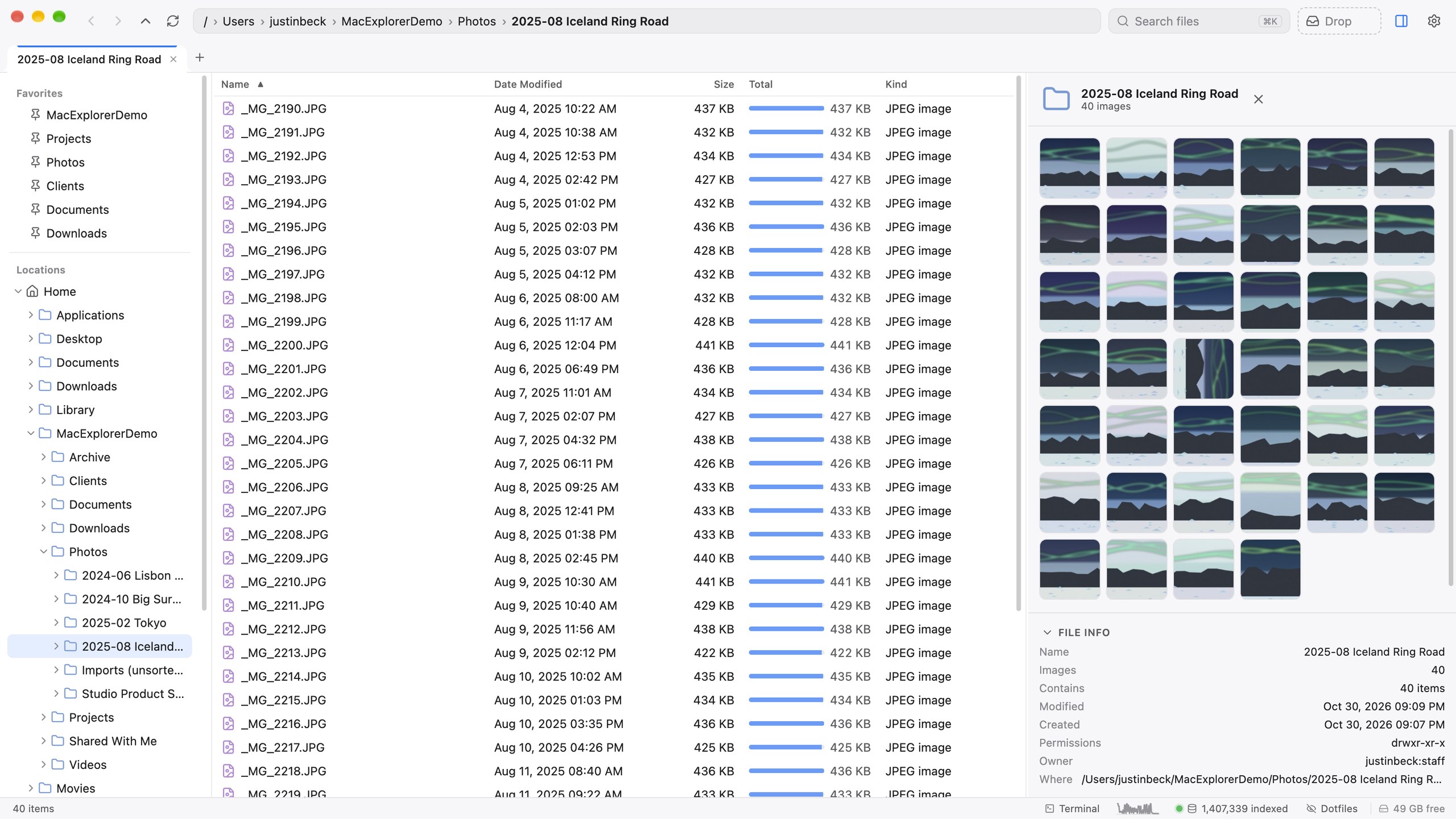
Press ⌘⌥P (or the panel button in the toolbar) to open Quick View on the right. It previews whatever is selected:
| Type | Preview |
|---|---|
| Images | JPEG, PNG, GIF and the rest, plus HEIC/HEIF and TIFF |
| Video | mp4, m4v, mov, webm, ogv. Plays muted on a loop, and you can seek anywhere |
| Full PDF viewer | |
| Markdown | Rendered, with folding sections, find, and an editor |
| Word | .docx rendered as a document |
| Excel | .xlsx, .xls, .xlsm, a tab per sheet (first 1,000 rows) |
| CSV / TSV | A typed database grid |
| Keynote, Pages, Numbers, PowerPoint, RTF, OpenDocument | The system’s Quick Look thumbnail |
| Text and code | The first 64 KB |
The header has Reload (for Markdown and PDF), Pop out and Hide.
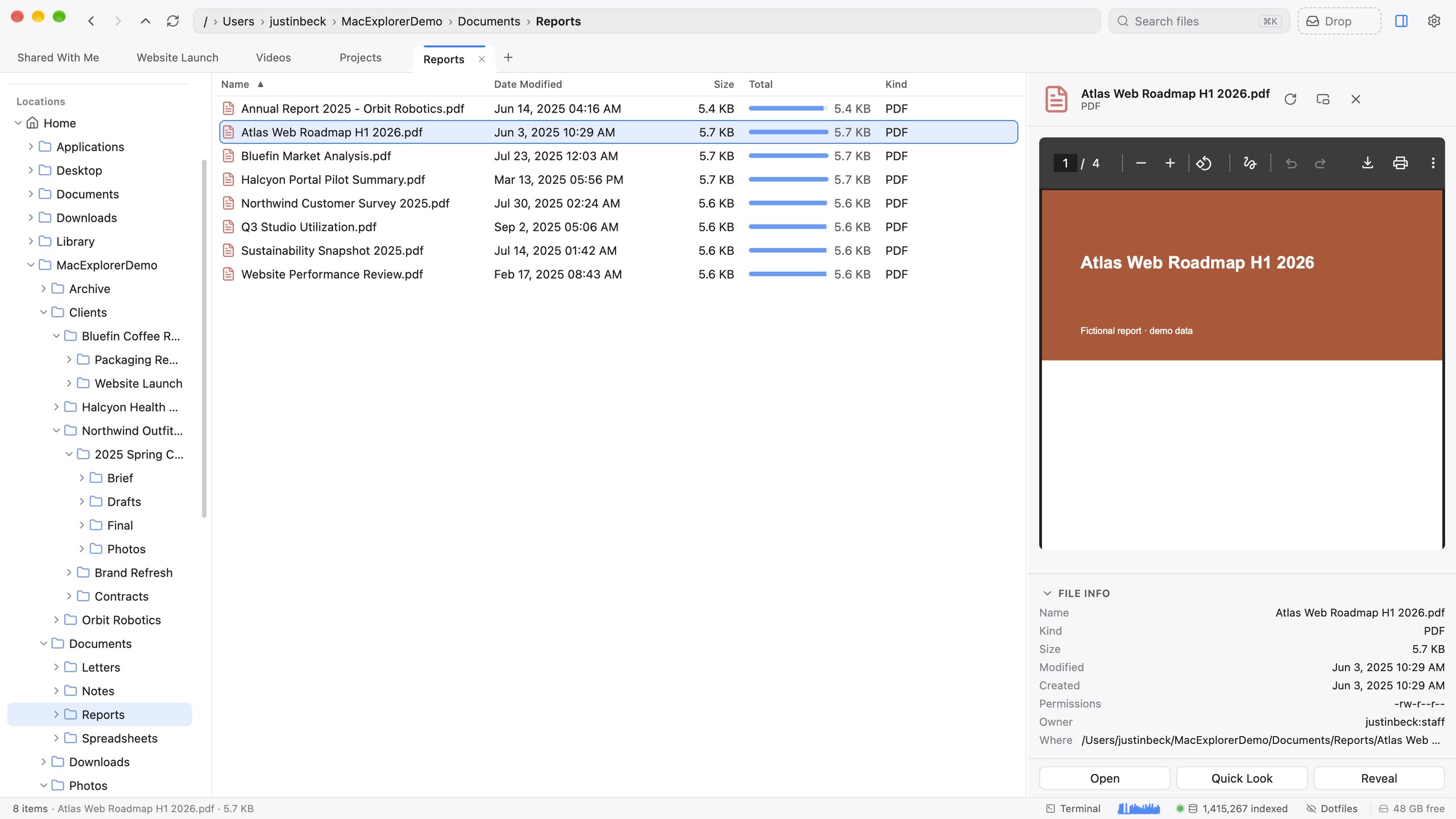
File Info
Under the preview, a collapsible File Info section shows the name, kind, size, item count, modified and created dates, permissions, owner and group, and location. For photos it adds dimensions, date taken, camera, lens, exposure and GPS coordinates. Buttons open the file, Quick Look it or reveal it.
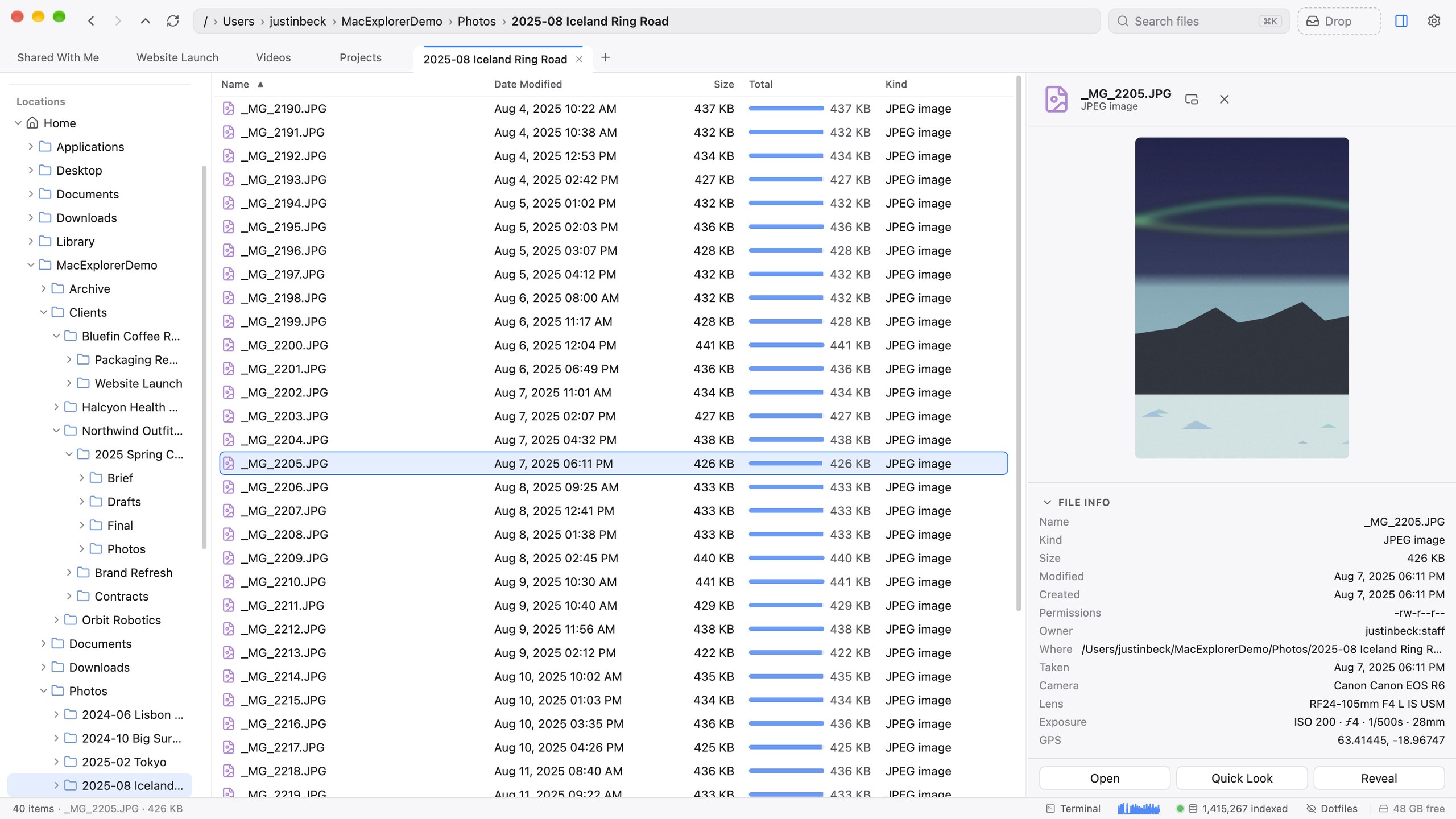
The folder image gallery
Clear the selection (press esc) and Quick View turns into a gallery of every image in the folder: 256-pixel thumbnails in the same order as the list, loaded 250 at a time. Click a thumbnail to open the image viewer; double-click to open the file.
The image viewer
The image viewer is a floating, draggable window that doesn’t block the rest of the app. It shows “4 / 120”-style position, and ← → (or ↑ ↓) step through every image in the folder. esc closes it.
Pop-out previews
Pop out opens the preview in its own window. You can have several open at once, and pop-outs get the full editors: the complete Markdown editor and the full database grid.
Quick Look
space still opens the system Quick Look panel, as in Finder.
Markdown
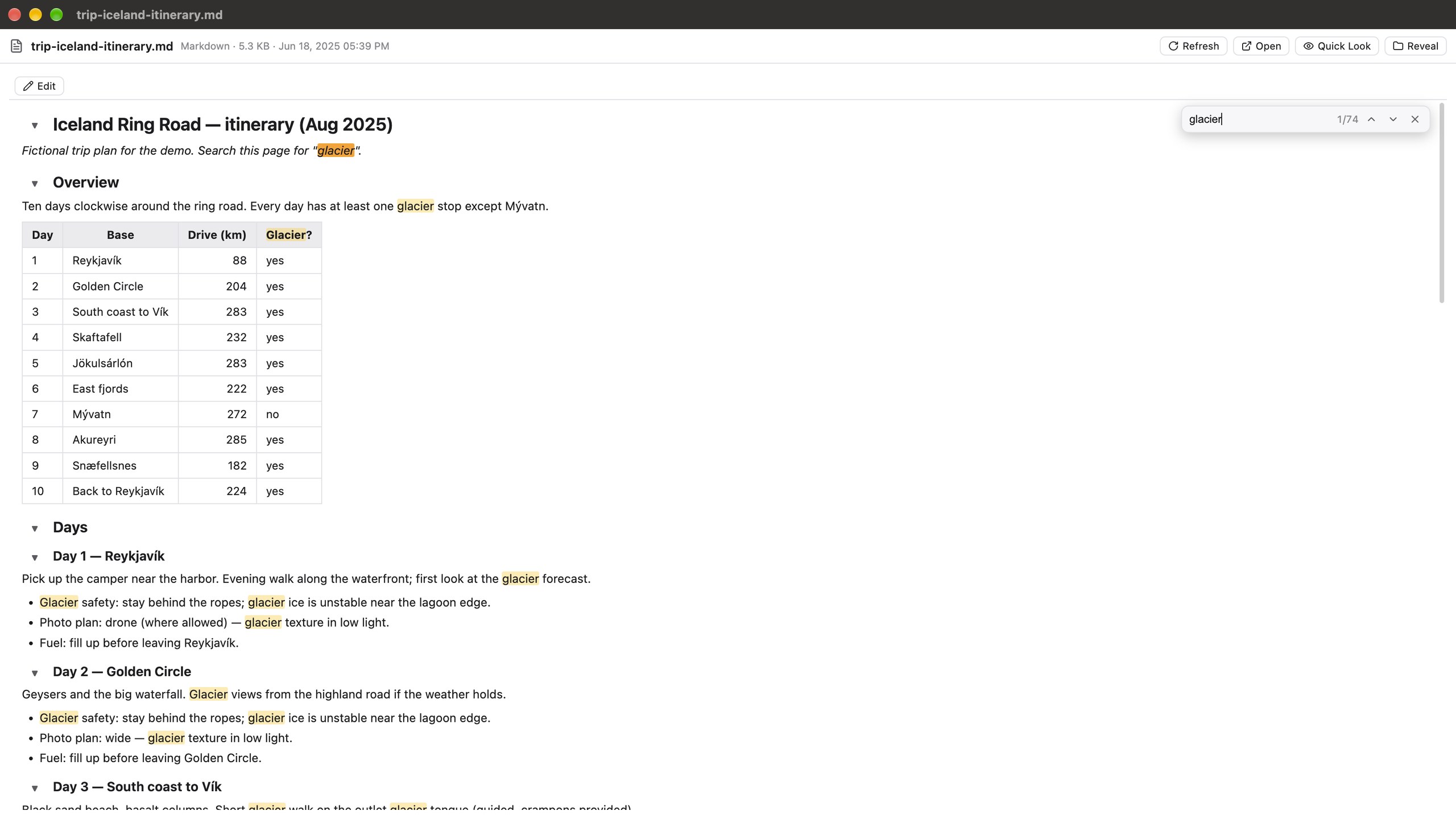
Select a .md file and Quick View renders it GitHub-style.
- Headings fold. Click an H1–H4 to collapse its section, nested sections included.
- Find with ⌘F. A counter shows “3 / 12”, and folded sections open when a match is inside them. ↩ and ⇧↩ step through matches; esc closes the find bar.
- Edit switches to a WYSIWYG editor with bold, italic, headings, paragraphs, lists and quotes.
While editing, Markdown shortcuts work as you type:
| Type | Get |
|---|---|
# then space | Heading 1 (## for 2, ### for 3, #### for 4) |
> then space | Quote |
- or * then space | Bullet list |
1. then space | Numbered list |
| Tab | Two spaces |
⌘S saves back to Markdown, tables included. A dot shows unsaved changes, and esc asks before discarding them.
Open as Database
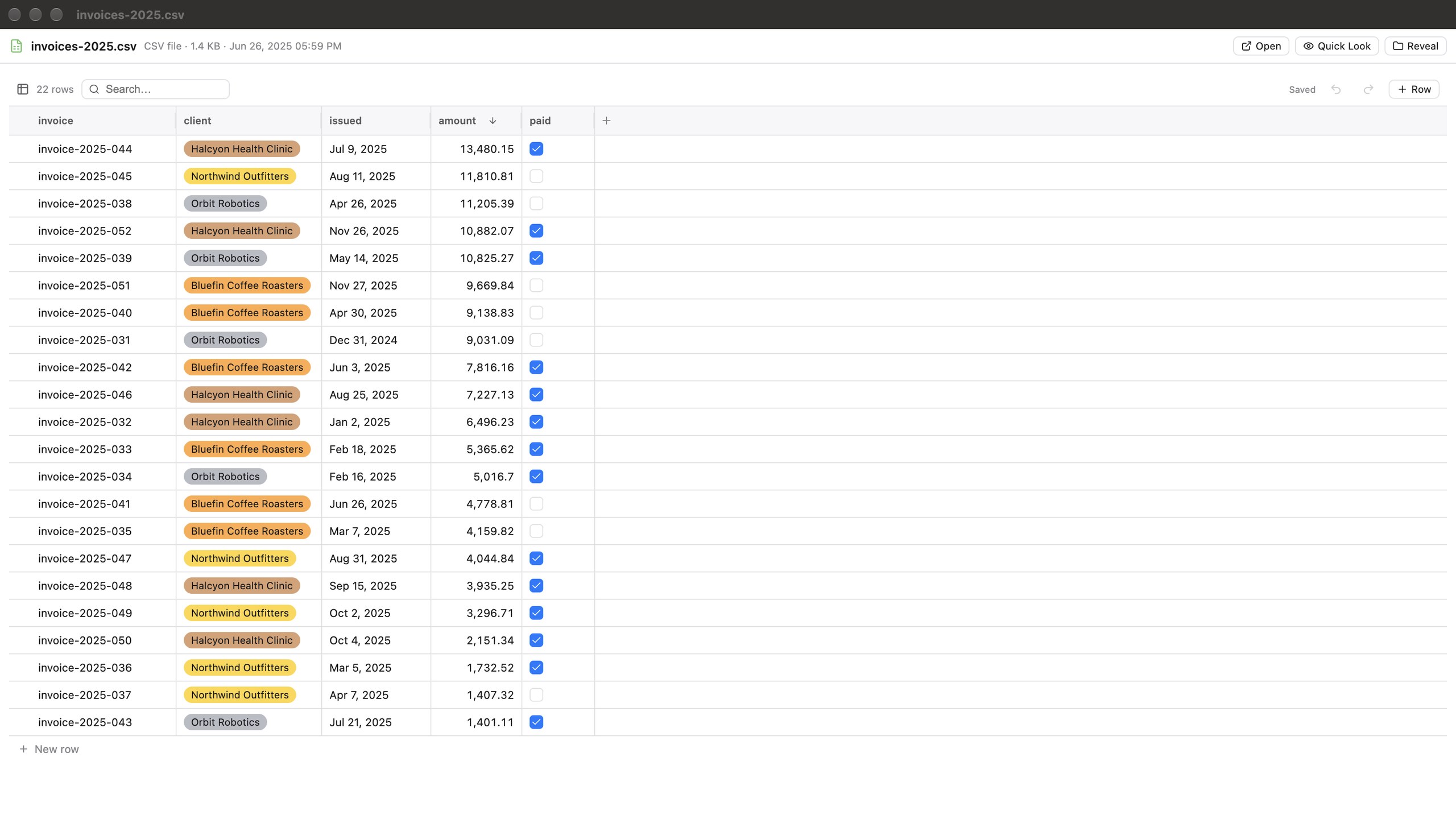
Right-click a .csv or .tsv ▸ Open as Database, or click Open as Database above the CSV preview in Quick View, to edit it as a typed table, Notion-style. The file stays a plain CSV.
- Column types are detected automatically and can be changed: Text, Number, Select, Multi-select, Checkbox, Progress, Date.
- Rename, insert, delete, reorder and resize columns. Sort, search, add and delete rows.
- Edits save automatically, with 30 steps of undo (⌘Z / ⇧⌘Z).
- Your view (types and widths) is saved to a small
*.dbview.jsonfile next to the CSV.
Quick View shows the first 200 rows read-only. The pop-out window is the full editor.
| Keys | Action |
|---|---|
| Arrows, Tab | Move between cells |
| ↩ | Edit a cell, or toggle a checkbox |
| Type a character | Start editing with it |
| ⌫ | Clear the cell |
| ↩ / Tab / esc while editing | Commit and move down / commit and move right / cancel |