
Drag & drop and the Drop shelf
Drag real files out to any app, move files within Mac Explorer with ⌥, and collect files from many folders on the Drop shelf.
Two kinds of drag
| Gesture | What it does |
|---|---|
| Drag | A native macOS drag of the whole selection, out to Finder, the Desktop, Mail, Gmail and other web upload fields, Slack, or another window, where it's a copy. Dropped on a folder or tree node in the same window, it moves. |
| ⌥drag | An in-app drag, for moving items into a folder, a tree node, a favorite or the Drop shelf in the same window. |
| ⌘ while dropping | Copy instead of move, for in-app drops. |
You can drag out from almost anywhere: rows in the file list, tree nodes, breadcrumb segments, search results, the Drop shelf and the menubar panel.
Dropping files in
Drag files from Finder or another app onto a folder row, the list background, a tree node or a favorite, and they’re copied in.
Spring-loaded folders
Hold a drag over a folder, tree node or favorite for about 1.4 seconds and it springs open, so you can drill down without letting go.
The Drop shelf
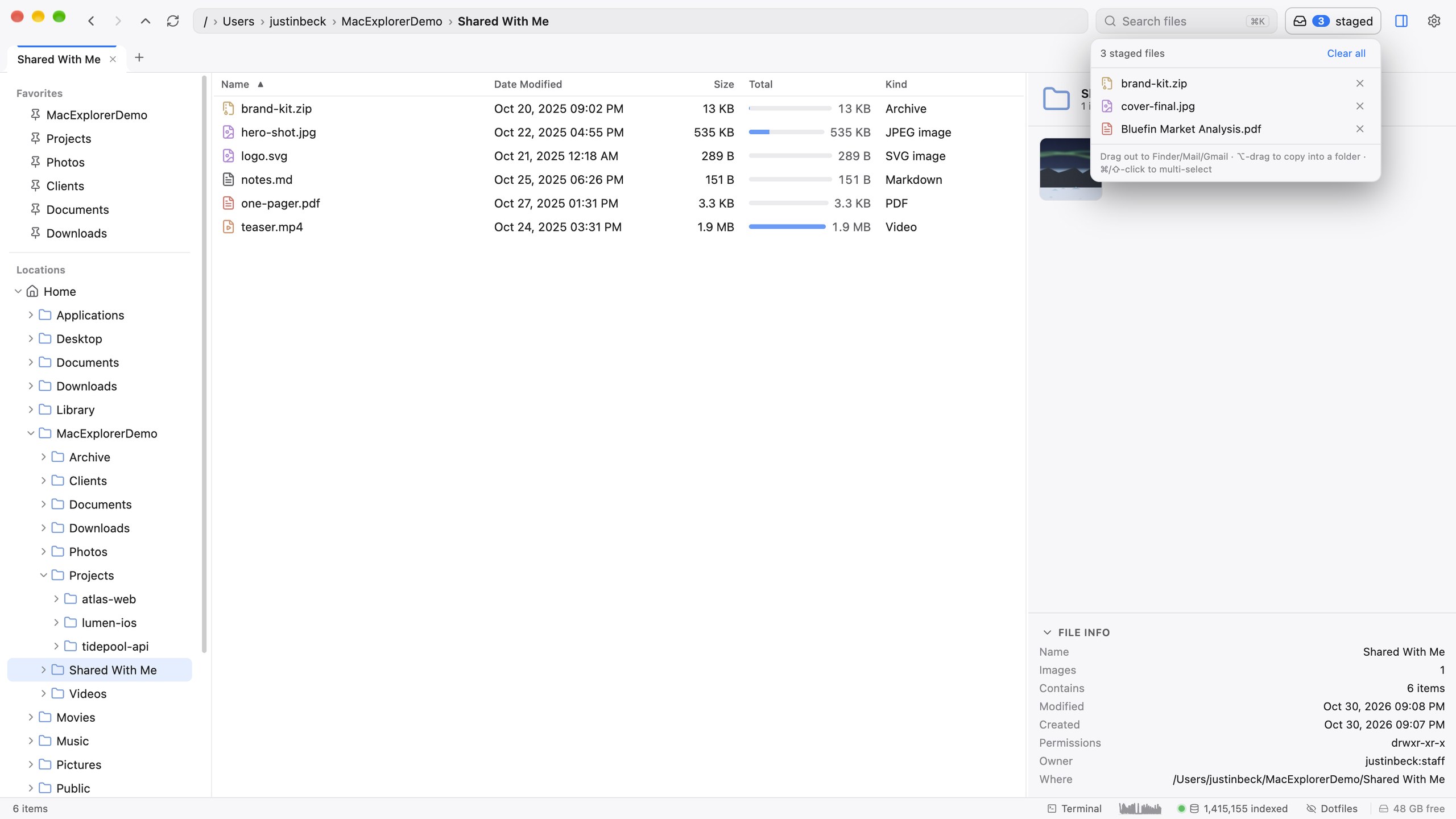
The Drop pill in the toolbar is a shelf for gathering files from many places before dropping them somewhere together. While you’re dragging it grows into a large target.
- Add files by dragging them onto the pill, or right-click a file ▸ Add to Drop Zone.
- The shelf holds references. Nothing is copied or moved until you drop.
- Hover the pill to see the tray. ⌘click and ⇧click select several items, × removes one, and Clear all empties it.
- Drag out from the tray to any app, or ⌥drag to copy into a folder in Mac Explorer.
- Right-click a row for Open, Quick Look, Reveal, Get Info, Open With, Copy Path(s), Share via croc, Share as Link and Remove.
The shelf survives relaunches and is shared with the menubar panel, so files you stage in the app are ready to drag from the menu bar, and the other way round. Scripts can add to it with macexplorer://stage?path=… (see deep links).
The menubar drop area
Drop files on the menubar panel’s Files tab to copy them into ~/Downloads and add them to the shelf in one move.