
Disk Usage
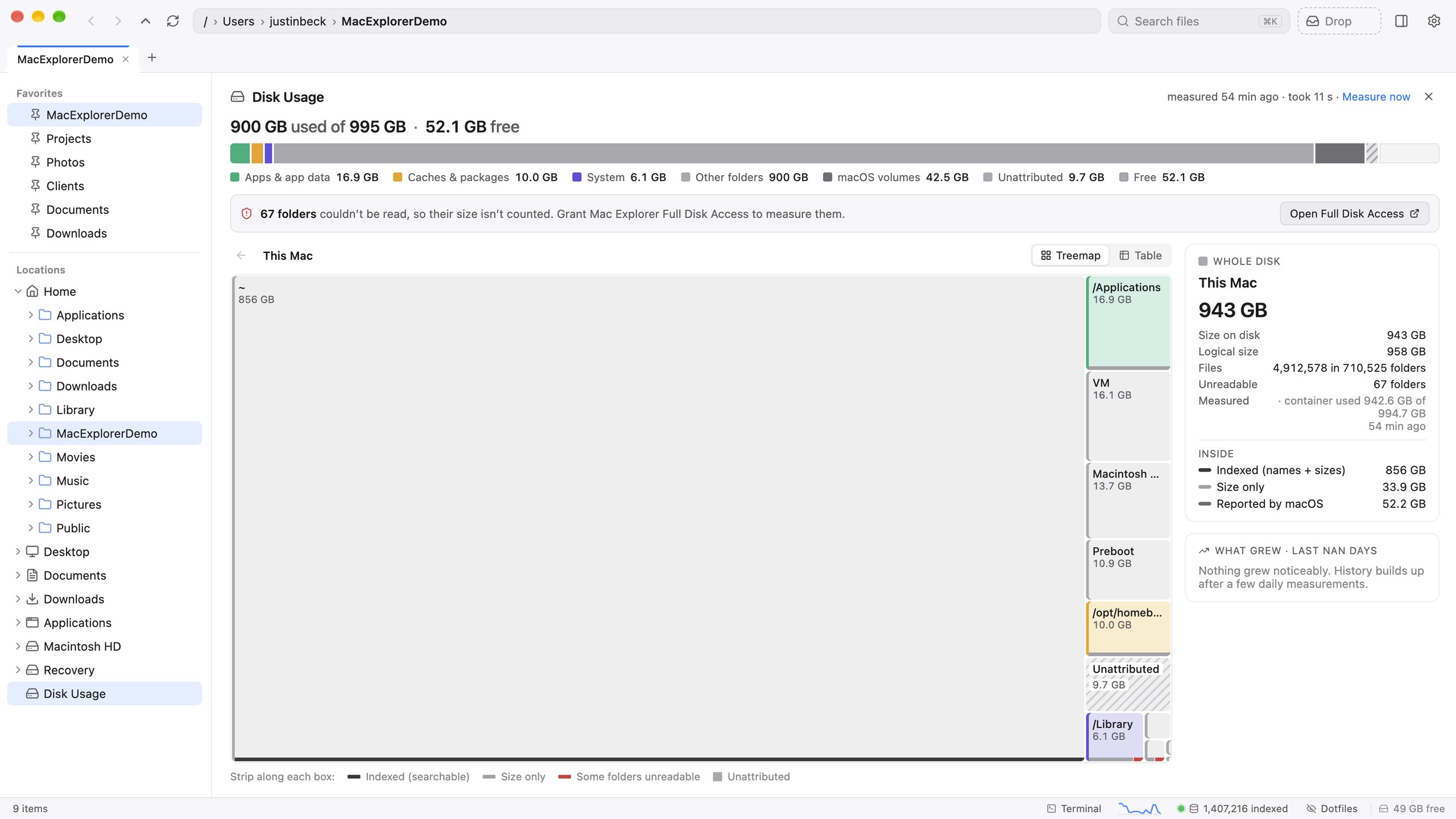
A read-only map of your whole Mac that adds up to what the disk reports, counts APFS clones once, and shows what grew this week.
Opening it
Any of these opens Disk Usage in the main pane:
- the “X free” chip in the status bar
- Locations ▸ Disk Usage in the sidebar
- Show Disk Usage in the command palette (⌘⇧P)
- the Disk Usage card in Settings ▸ Search Index
esc closes it.
The whole Mac, not just your index
Search covers the folders you choose, but Disk Usage measures everything: your indexed folders, ~/Library, every hidden folder in your Home, the rest of Home, /Applications, /Library, /opt/homebrew, /usr/local, /Users/Shared, and the system’s temporary folders, plus a box for each macOS volume. Together they add up to exactly what the disk says is used.
The volume bar
The top of the page reads “X used of Y · Z free” (with a red Low tag under 5% free) and a stacked bar showing:
- your folders,
- macOS volumes: System, VM/swap, Preboot, Recovery, Update,
- Unattributed: space the disk reports as used that no folder accounts for,
- free space.
The treemap
Each tile is a folder, sized by the space it actually takes on disk and coloured by category:
Documents & media · Code & dev tools · Apps & app data · Caches & packages · VMs & simulators · Databases · System
The palette is colour-blind safe. A strip on each tile shows how it was measured (from the index, size-only, or partly unreadable). Click a tile or press ↩ to drill in. Use Back or the breadcrumbs to come out.
| Keys | Action |
|---|---|
| Arrows | Move to the neighbouring tile |
| PageUp / PageDown | Previous / next tile by size |
| Home / End | Biggest / smallest tile |
| ↩ or space | Open the folder |
| ⌫, ⌘[ or ⌘↑ | Up one level |
| esc | Clear the selection, then close the page |
The table view
Prefer numbers? Switch to Table for Name, Size on disk (with %), Logical size, Files, Coverage and Last measured, all sortable. Mac Explorer remembers which view you used last.
Clone-aware sizes
APFS can store copies of a file that share the same blocks on disk (clones), and hard links point several names at one file. du and Finder count each copy in full, so they can report far more than is really used. Disk Usage counts each hard link once and each clone family once.
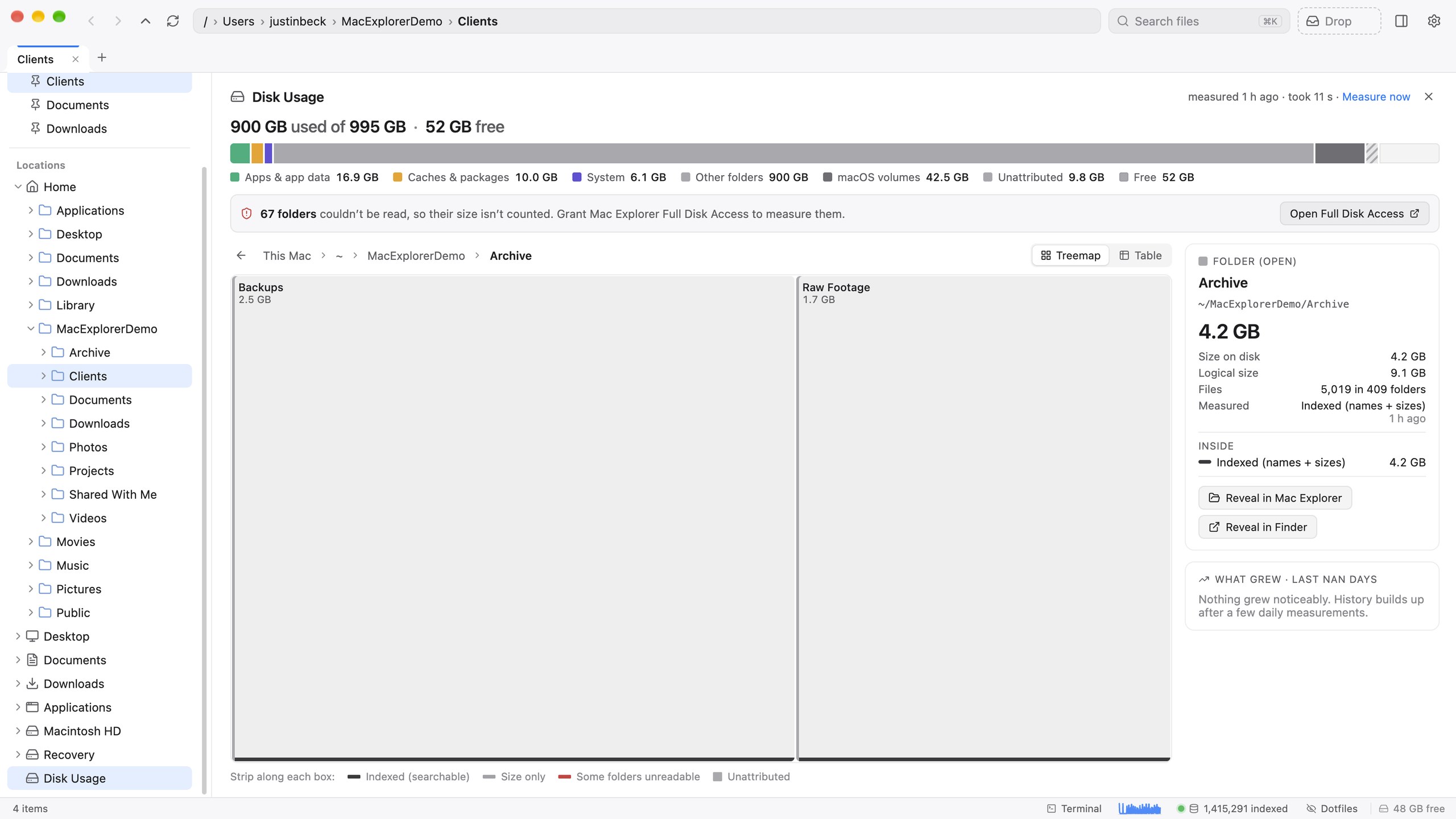
The side rail shows these numbers for whatever you hover or select:
| Number | Meaning |
|---|---|
| Size on disk | Allocated blocks, as the disk sees them |
| Logical size | The sum of the file sizes |
| Clone-aware | What deleting it would actually free. Shown for folders the disk scan measured block by block |
For example, one Chrome support folder full of clones measured about 444 GB with du, and about 1.5 GB here.
The side rail
Hover or select a tile to see its path, size, share of its parent, file and folder counts, unreadable items, category, the app that owns it, and how and when it was measured. An Inside breakdown lists what’s in it. For caches, simulators, VM images, build output and dependency folders it adds a hint that the space is usually safe to reclaim.
Unattributed space
Click Unattributed to see what macOS usually lumps into “System Data”:
- Purgeable: macOS’s estimate of space it can free on its own
- Local snapshots: Time Machine and system snapshots holding on to old blocks
- Unreadable folders: folders Mac Explorer wasn’t allowed to measure
- Index roots needing a re-index
- System and unreadable: whatever is left
If the folders add up to more than the disk reports, the page says so (“Ledger over-count”) rather than hiding it.
What grew
What grew lists the eight folders that grew the most over the past week, with their bars and how much they added. Click one to go there. History builds up from the daily measurements, so a new install shows “Nothing grew noticeably” for the first few days. Mac Explorer keeps daily history for 90 days, then weekly.
Measuring
The page says when it last measured (“measured 3 h ago · took 40 s”). Click Measure now to refresh. A full pass also runs once a day while your Mac is idle and plugged in, at low priority.
If some folders couldn’t be read, a banner offers Open Full Disk Access. Grant it to Mac Explorer in System Settings ▸ Privacy & Security and measure again.
Accessibility
The treemap is a keyboard-navigable list for VoiceOver, with labelled tiles. Drilling in is announced, and the volume summary is spoken.